Updating Organization Exclude List
The Exclude List enables you to configure CIDRs, Domains, Email Addresses, IP Addresses, Hashes, URLs, or User Agents you want to prevent users within your organization from importing. Adding an entry to your Exclude List does not prevent other organizations from importing it.
(Click the image to enlarge it.)
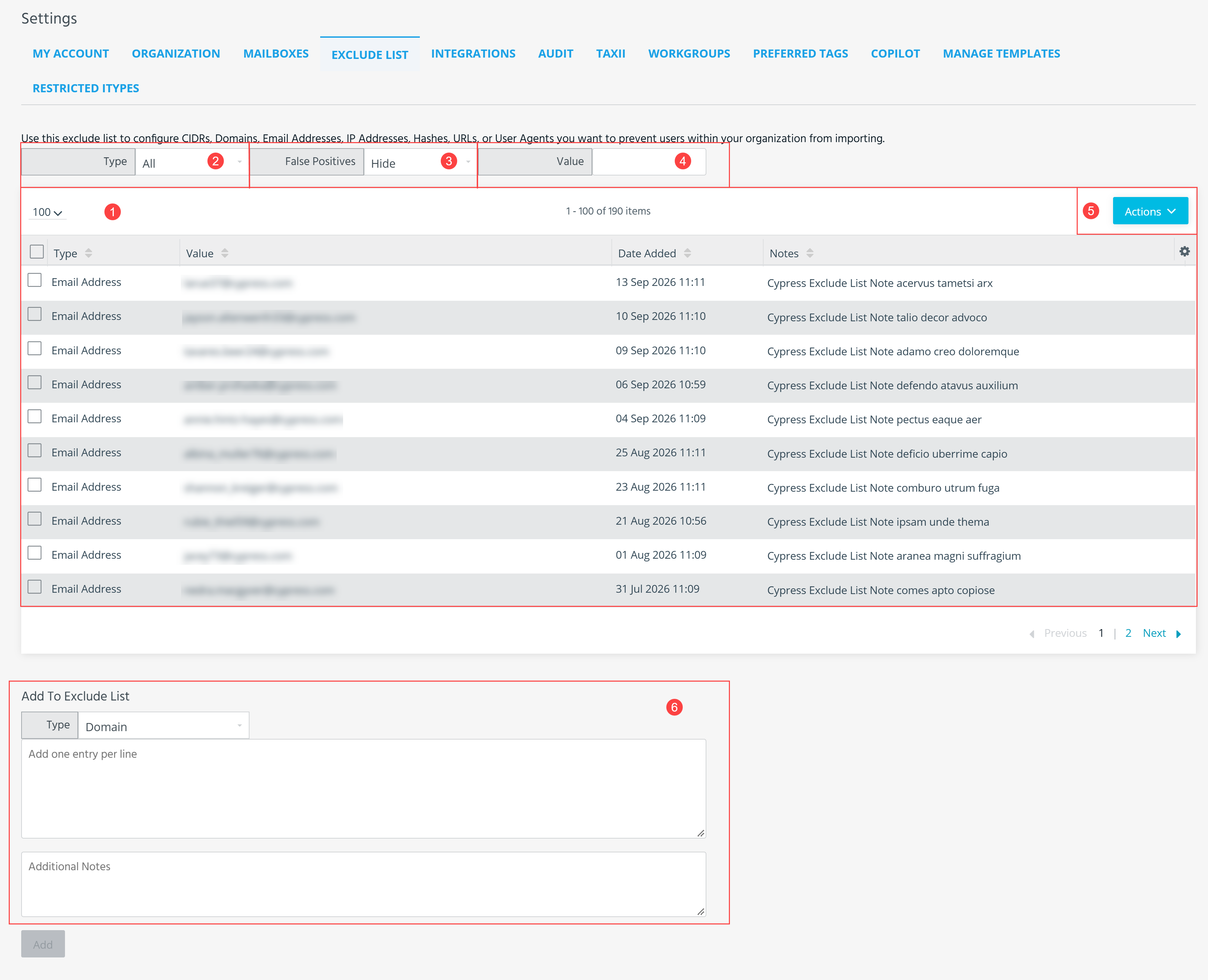
 Entries currently configured on your Exclude List.
 Filter configured entries by Type.
 Show or hide entries added to your Exclude List through being reported as false positive. See Reporting False Positives for more information. By default, false positive entries added to the Exclude List are hidden.
 Search configured Exclude List entries by keyword.
 Actions:
- Import CSV—Add Exclude List entries from a CSV file. See Adding Exclude List Entries from a CSV File.
- Export CSV—Download a list of your Exclude List entries is CSV format. See Exporting Exclude List Entries
- Remove—remove selected entries from your Exclude List. See Removing Entries from Your Exclude List.
- Edit Note—edit the contextual note associated with the selected entry. See Editing Exclude List Entries.
 Add entries to your Exclude List. See Adding Entries to Your Exclude List for more information.
Adding Entries to Your Exclude List
Follow these guidelines when adding entries to your Exclude List:
- You can add up to 100,000 entries to your Exclude List.
- In addition to the domain itself, Domain entries cover all email addresses and URLs associated with the domain.
-
To add all subdomains associated with a domain to your Exclude List, add a separate Domain entry to the Exclude List that adheres to the following expression:
*.<domain_name>Entries adhering to this expression cover subdomains only and not the domain with which they are associated. You must add a separate entry without the expression to cover the domain itself and its associated email addresses and URLs.
For example, to add the domain example.com to your Exclude List—and its associated email addresses and URLs—addexample.comas a Domain Name entry to your Exclude List. To cover all subdomains associated with example.com in your Exclude List, such as my.example.com, add*.example.comas a separate Domain Name entry to your Exclude List. - Alphanumeric characters are normalized to lower-case when entries are added.
- You can add multiple entries of the same type at once. When adding multiple entries, enter one per line to separate them.
- IPv6 addresses cannot be added to the Exclude List.
To add entries to your Exclude List:
- In the bottom-left corner of the side navigation panel, click
 > ThreatStream and then click Exclude List
 - Under Add To Exclude List, select a Type.
- Type or paste the entries into the text box. Each entry must be on its own line.
- (Optional) Add contextual information on the entries in the Additional Notes box. Notes are applied to all new Exclude List entries and can be edited at any time.
- Click Add.
Adding Exclude List Entries from a CSV File
In addition to manually entering exclude list entries on the Exclude List tab, you can also upload a CSV file that contains the entries you want to add to your Exclude List.
The CSV file must adhere to the following requirements:
- The entries must be contained in a valid CSV file with the following header line:
value_type,value,notes. value_typemust be specified for each entry. Possible types includedomain,email,ip,md5,url,user-agent, andcidr.valuemust be specified for each entry. Values must be valid entries based on the specified type. For example, if you specifyipfortype, the corresponding value must be a valid IP address.notesis optional for each entry.- All text in the CSV file must be lower-cased.
The following is an example of a valid CSV file:
value_type,value,notes
domain,*wildcard-example.com,this is a valid domain
email,account@example.com,
ip,1.2.3.4,
md5,fe01ce2a7fbac8fafaed7c982a04e229,
url,http://example.com,
user-agent,myagent1,
cidr,192.0.2.0/24,
To add exclude list entries from a CSV file:
- In the bottom-left corner of the side navigation panel, click > ThreatStream and then click Exclude List
- In the Actions menu, click Import CSV.
- Click Select File and browse for the CSV file.
- Click Import.
The entries from the CSV file are then added to your Exclude List. If the import failed, ensure your CSV file adheres to the above requirements and try again.
Editing Exclude List Entries
You can edit the contextual notes associated with existing exclude list entries. Only one entry can be edited at a time.
To edit Exclude List entries:
- In the bottom-left corner of the side navigation panel, click > ThreatStream and then click Exclude List
-
Select the entry you want to edit.
-
In the Actions menu, click Edit note.

- Make desired edits to the note.
- Click Save Change.
Changes are reflected in the Notes column of the Exclude List table.
Removing Entries from Your Exclude List
You can remove multiple entries from your Exclude List at once.
To remove entries from your Exclude List:
- In the bottom-left corner of the side navigation panel, click > ThreatStream and then click Exclude List
-
Select the entries you want to remove.
-
In the Actions menu, click Remove.

Exporting Exclude List Entries
You can export a complete list of your Exclude List entries in CSV format.
To export Exclude List entries:
- In the bottom-left corner of the side navigation panel, click > ThreatStream and then click Exclude List
- In the Actions menu, click Export CSV.
Your download starts immediately.